
AI Assistants (MCP)
Bookworm has an MCP server — the open standard AI assistants use to talk to other apps. Once connected, you can tell your assistant things like “I read 40 pages of Dune today” or “add the books from this article to my Want to Read list”, and it updates your Bookworm account for you.
Each assistant connects with its own personal key, so you can see when each one was last used and disconnect any of them at any time.
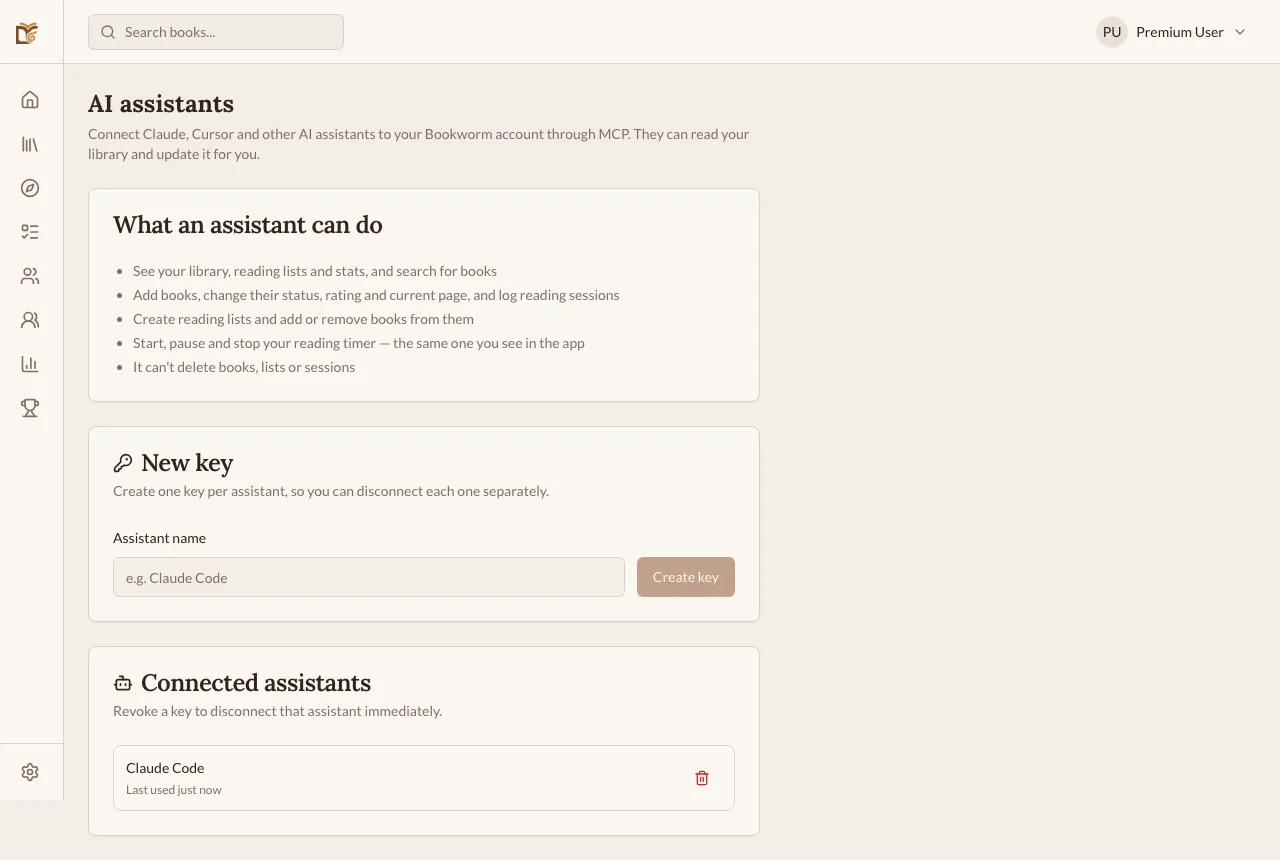
Connecting an Assistant
Section titled “Connecting an Assistant”- On the web, go to Settings, open the Integrations tab and tap Set up in the AI assistants (MCP) card — or go straight to app.bookwormtracker.com/ai-assistants.
- Under New key, type the Assistant name (for example, “Claude Code”) and tap Create key.
- Copy your key. The commands shown below it already include the key — copy the one for your assistant.
Claude Code
Section titled “Claude Code”Run this in your terminal, replacing YOUR_BOOKWORM_KEY with your key:
claude mcp add --transport http --scope user bookworm https://api.bookwormtracker.com/api/mcp --header "Authorization: Bearer YOUR_BOOKWORM_KEY"Cursor and other clients
Section titled “Cursor and other clients”Most other clients take a JSON config. Add this to your client’s MCP settings (in Cursor, ~/.cursor/mcp.json):
{ "mcpServers": { "bookworm": { "url": "https://api.bookwormtracker.com/api/mcp", "headers": { "Authorization": "Bearer YOUR_BOOKWORM_KEY" } } }}What an Assistant Can Do
Section titled “What an Assistant Can Do”- See your library, reading lists and stats, and search for books.
- Add books to your library and change their status, rating, review and current page.
- Log reading sessions with the pages you read.
- Create reading lists and add or remove books from them.
- Start, pause and stop your reading timer — the same timer you see in the app, so a session started by your assistant shows up on your phone right away.
An assistant can’t delete books, lists or sessions. Removing a book from a list keeps it in your library.
Managing Your Keys
Section titled “Managing Your Keys”Every key you create appears under Connected assistants, with the last time it was used. Tap the trash icon and confirm with Revoke to disconnect that assistant immediately.
Free vs Premium
Section titled “Free vs Premium”| Free | Premium | |
|---|---|---|
| Connect AI assistants | — | ✓ |
| Personal keys | — | Up to 5 |