
Library
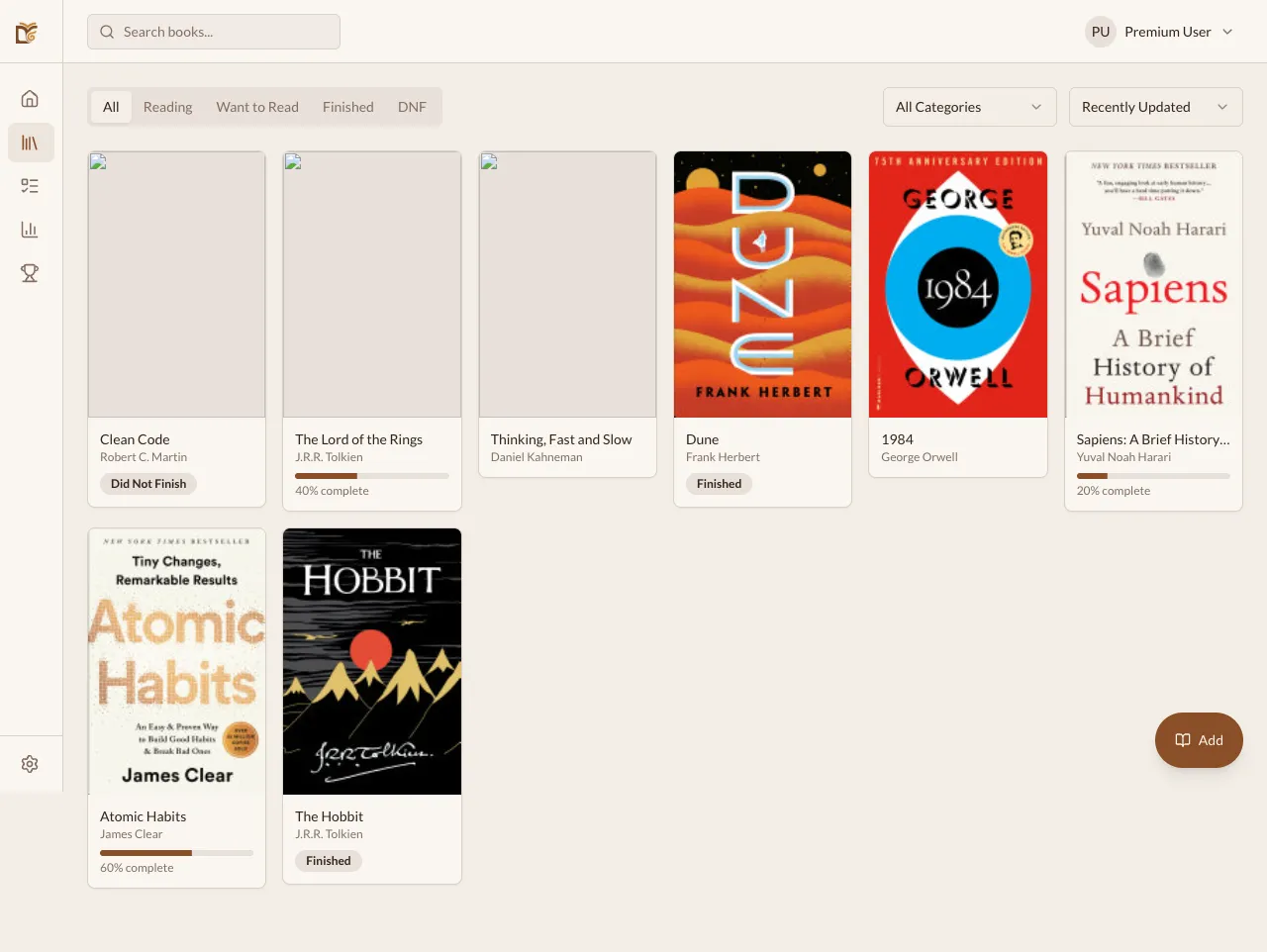
Your Library is where all your books live. It gives you a full view of everything you’re reading, want to read, and have finished.
Reading Statuses
Section titled “Reading Statuses”Every book in your library has one of four statuses:
- Want to Read — books on your wishlist or to-read list
- Currently Reading — books you’re actively reading
- Finished — completed books
- DNF (Did Not Finish) — books you chose to stop reading
To change a book’s status, open it and tap Change status (or the Mark as… dropdown on the web). You can jump directly to any state — for example, from Want to Read straight to Finished — without having to mark it as Currently Reading first.
Book Formats
Section titled “Book Formats”You can tag each book with its format:
- Physical — a printed book
- Digital — an ebook (Kindle, Kobo, etc.)
- Audiobook — an audio version
This helps you track how you consume books across different formats.
Adding Books
Section titled “Adding Books”- Click + Add Book in the top right.
- Search by title, author, or ISBN.
- Select from the results and choose a status.
- The book is added to your library.
Filtering and Sorting
Section titled “Filtering and Sorting”Use the filter bar above your library to narrow down books:
- By status — show only “Currently Reading”, “Finished”, etc.
- By category — filter by genre (Fiction, Non-Fiction, Science, etc.)
- By mood — filter finished books by the mood you tagged them with (Cozy, Dark, Inspiring, etc.)
- Search — type to search within your library
View options
Section titled “View options”The library remembers how you like to see your books. Open the View options popover (or the settings icon on mobile) to customize:
- Layout mode — Tabs (single list with status filter tabs) or Sections (every status visible at once in collapsible groups)
- Card layout — Grid (covers in a grid) or List (compact horizontal rows)
- Columns — 2–6 on the web, 2–4 on mobile. Pick a denser grid to scan more books at a glance
- Hide title and author — show only book covers (auto-enabled when the grid gets too dense to fit text)
Book Details
Section titled “Book Details”Click any book to see its detail page:
- Progress bar — visual progress based on logged sessions
- Reading sessions — history of all logged sessions
- Notes — your notes for this book
- Review — your review and rating (when finished)
- Mood tags — up to 5 mood tags on finished books (see Mood Tagging)
- Content warnings — community-sourced warnings for sensitive themes (see Content Warnings)
- Series — series and volume shown under the title (e.g. “One Piece · Vol. 12”), when the book belongs to one
- Amazon link — quick link to find the book on Amazon
Editing and Removing Books
Section titled “Editing and Removing Books”Many books in Bookworm come from a shared catalog: when two readers add the same edition (same ISBN), they share one book record. To keep everyone’s shelf intact, what you can do depends on whose book it is:
| The book is… | Edit | What the remove button does |
|---|---|---|
| Yours alone — you added it and no other reader uses it (shelf, lists, notes, clubs or buddy reads) | ✓ | Delete removes the book for good, with its sessions and notes |
| Shared or from the catalog | — | Remove from library takes it off your shelf, with your progress |
To remove a book:
- Open the book’s detail page.
- Click the menu icon (three dots) or the remove button.
- Choose Delete or Remove from library and confirm.
Categories
Section titled “Categories”Bookworm supports 28 book categories including Fiction, Non-Fiction, Science Fiction, Fantasy, Biography, Self-Help, History, Comics and Manga. You can set a book’s category when adding it or from the book detail page.
Series and Volumes
Section titled “Series and Volumes”Comics, manga and long sagas can be grouped by series. When adding a book by hand or editing your own book, fill in:
- Series / collection — e.g. One Piece
- Volume — e.g. 12 (text, so 1.5 or Special also work)
The series then shows under the title on the book page, like One Piece · Vol. 12.