
Book Search
Bookworm searches across multiple book databases to help you find the right edition of any book.
How to Search
Section titled “How to Search”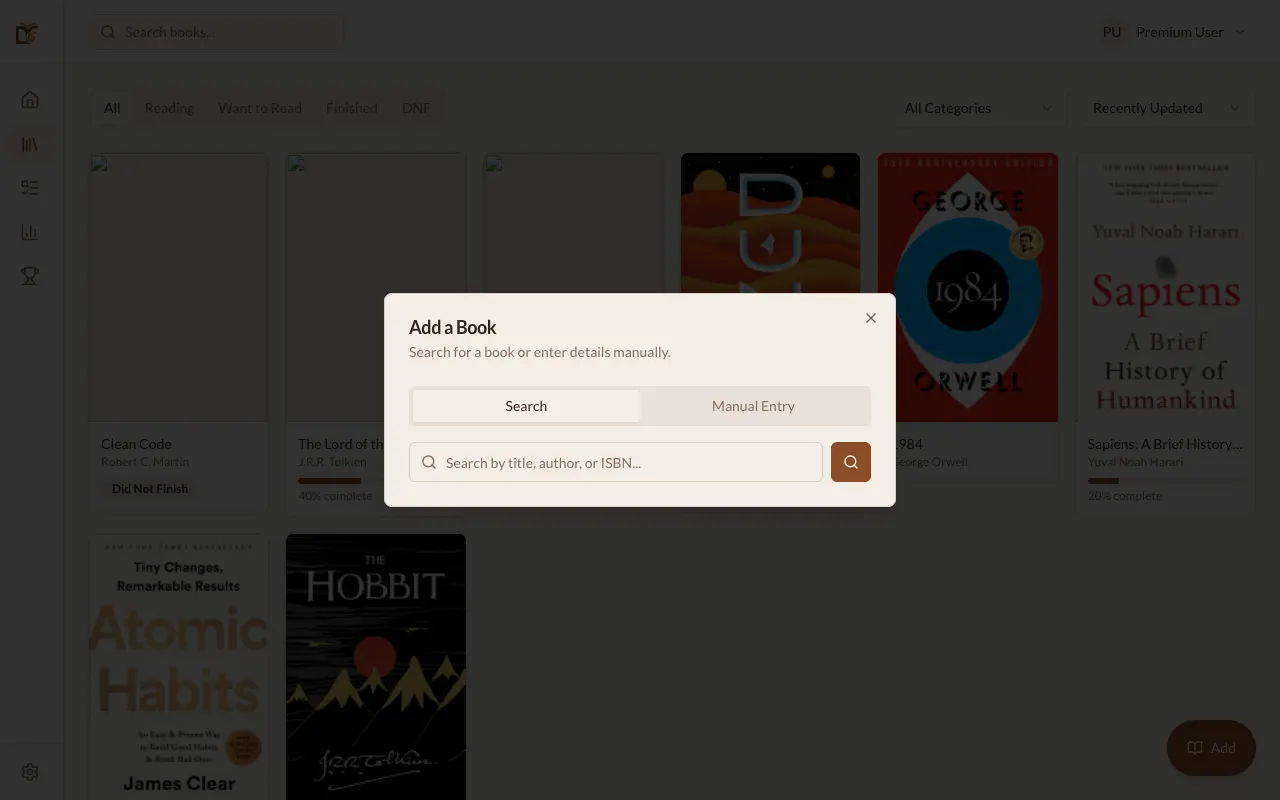
- Click + Add Book from your library or Dashboard.
- Type a book title, author name, or ISBN.
- Browse the results and select the right book.
Search Results
Section titled “Search Results”Each result shows:
- Cover image (when available)
- Title and author
- Year published
- Page count
- ISBN
Select a result to add it to your library with your chosen reading status.
Searching by ISBN
Section titled “Searching by ISBN”Type or scan the ISBN from the back cover to find the exact edition. Both the 10-digit and the 13-digit ISBN work — they point to the same book.
For books published in Brazil (ISBNs starting with 978-65 or 978-85), Bookworm also checks the records of the CBL, Brazil’s national ISBN agency. That helps a lot with Brazilian comics and manga (Panini, JBC, NewPOP and others), which are often missing from international catalogs. Results from it show a CBL (Brazil ISBN) badge.
Language Prioritization
Section titled “Language Prioritization”The search prioritizes results in your preferred language. If you’re using Bookworm in Portuguese, Portuguese editions appear first.
Pagination
Section titled “Pagination”Search results load in batches. If you don’t find what you’re looking for in the first results, scroll down to load more. The search continues fetching results until there are no more matches.
Adding a Book from Search
Section titled “Adding a Book from Search”- Click on a search result.
- Choose a reading status (Want to Read, Currently Reading, etc.).
- Optionally set the format (Physical, Digital, Audiobook).
- Click Add to Library.
The book is now in your library with its cover, metadata, and an Amazon affiliate link for quick purchasing.
Manual entry
Section titled “Manual entry”If you can’t find the book in any database, switch to the Manual tab and fill in the metadata yourself.
When a search returns nothing, tap Add manually right below the message: Bookworm opens the manual form with the ISBN you searched (or scanned) already filled in — or with your search text as the title.
The manual form now also lets you set the initial reading status when you add the book — pick Finished and Bookworm will ask for the completion date. This is the fastest way to log books you read before joining Bookworm.
Barcode Scanner (Mobile)
Section titled “Barcode Scanner (Mobile)”On mobile, you can scan the barcode on the back of any physical book instead of typing a search.
- Tap + Add Book from your library or Dashboard.
- Select the Scanner tab in the Add Book dialog.
- Point your camera at the ISBN barcode on the back cover.
- Bookworm automatically detects the ISBN and fetches the book details.
- Tap Add to Library to confirm.