
Notes & Reviews
Bookworm lets you capture your thoughts as you read with notes, and write a review when you finish.
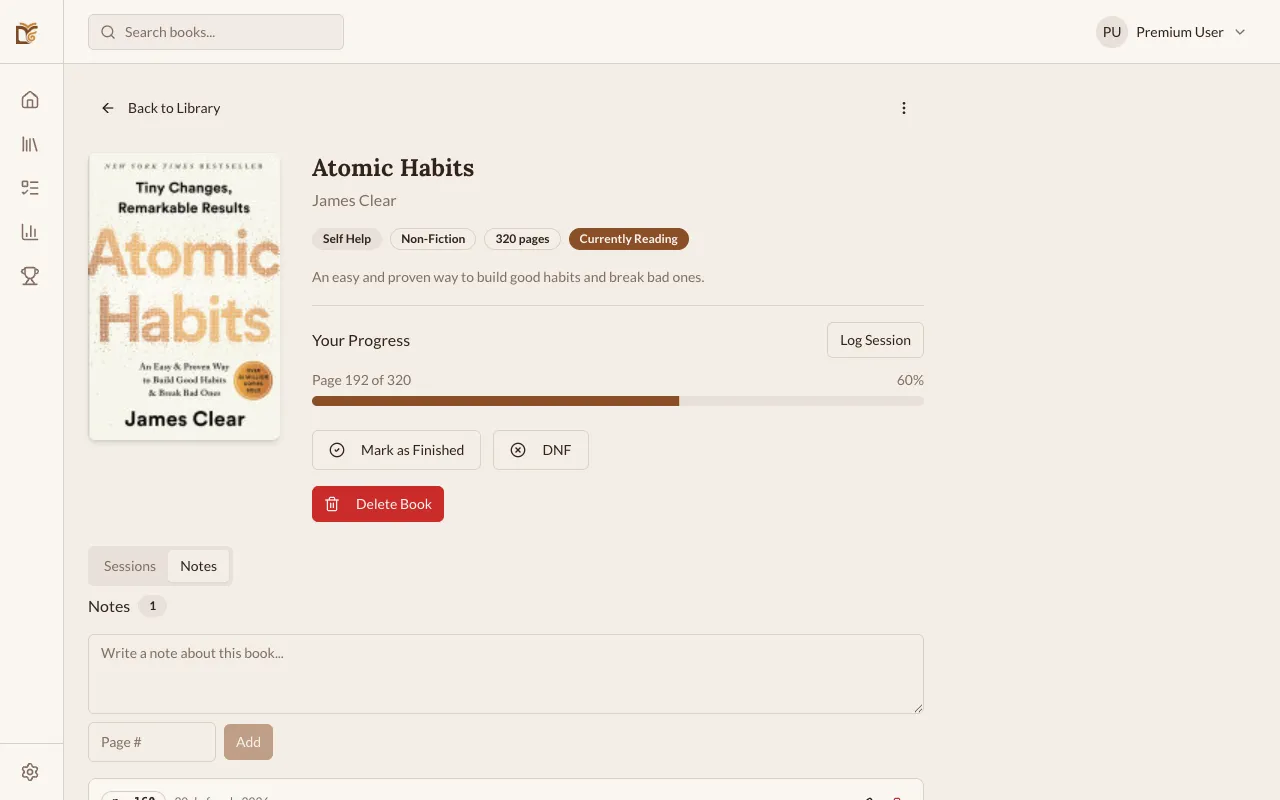
Adding a Note
Section titled “Adding a Note”- Open a book from your library.
- Go to the Notes tab.
- Click + Add Note.
- Write your note (up to 5,000 characters).
- Optionally enter a page number to reference where you were reading.
- Save.
Viewing Notes
Section titled “Viewing Notes”All notes for a book are listed on the Notes tab, sorted by creation date. Each note shows:
- The note content
- Page number (if set)
- Date created
Editing and Deleting Notes
Section titled “Editing and Deleting Notes”- Click the edit icon on any note to update its content or page number.
- Click the delete icon to remove a note permanently.
Reviews
Section titled “Reviews”When you finish a book, you can write a review:
- Open the finished book.
- You’ll see a Review section.
- Write your review (up to 5,000 characters).
- Save.
Reviews are private — only you can see them. They help you remember what you thought about a book.
CSV Export
Section titled “CSV Export”On the web app, you can export all your notes via CSV:
- Notes are formatted as
[p.42] Note text(with page) or just the note text (without page). - This is useful for backing up your reading notes or importing into other tools.